How to Solve GB WhatsApp Update Errors: Quick Solution
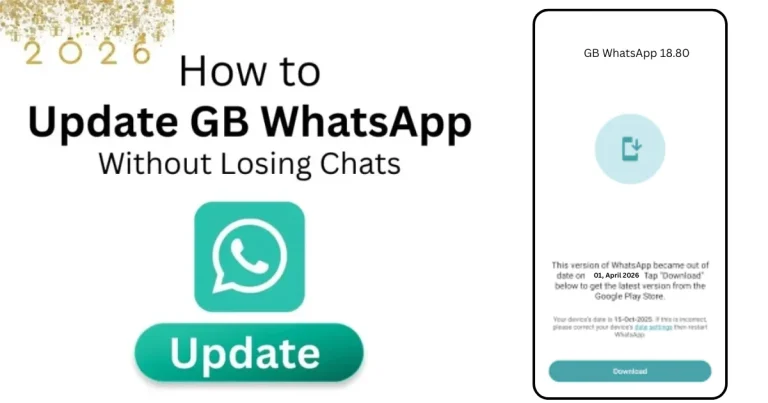
GB WhatsApp is one of the most feature-rich messaging apps available for Android users. It gives you extra privacy controls, file-sharing options, custom themes, and more. But one thing that many users struggle with is updating the app. Unlike official apps on the Google Play Store, GB WhatsApp requires you to download and install each new update manually. This process can sometimes go wrong and leave you stuck with an update error.
If you are facing an error while trying to update GB WhatsApp, do not worry. In this guide we will cover every possible update error and give you a quick and easy solution for each one. By the end of this article, you will know exactly how to handle any GB WhatsApp update error without losing your chats or data.
Why GB WhatsApp Update Errors Happen
Before jumping into the solutions, it is important to understand why these errors occur in the first place. Here are the most common reasons why GB WhatsApp update errors happen:
- You are trying to install an outdated or incorrect APK file.
- Your phone does not have enough storage space for the new update.
- The downloaded APK file is corrupted or incomplete.
- Your phone is blocking the installation because of security settings.
- There is a conflict between the old version and the new version of the app.
- Your internet connection dropped during the download, causing the file to be damaged.
- The version you downloaded is not compatible with your Android version.
- You tried to install the update after uninstalling the old app, which caused data loss.
Now, let us go through each solution in complete detail so you can fix the error quickly and get back to using GB WhatsApp without any problems.
Always Back Up Before Updating
This is not exactly a fix for an error, but it is the most important step you should always take before starting any update. Many users make the mistake of trying to update first and then thinking about backup after something goes wrong. By then, it is already too late.
How to Take a Backup Before Updating
- Open GB WhatsApp on your phone.
- Tap on the three dots in the top right corner and go to Settings.
- Tap on Chats and then tap on Chat Backup.
- Tap the Back Up button and wait for the backup to complete fully.
- After the backup is done check the date and time shown on the screen to confirm it was successful.
- Also go to your File Manager and copy the entire GB WhatsApp folder from Internal Storage to your computer or Google Drive as an extra safety measure.
Once your backup is ready you can proceed with the update without worrying about losing your chats.
Download the Correct and Latest APK File
One of the most common reasons for an update error is downloading the wrong APK file. Many websites offer GB WhatsApp downloads, but not all of them are safe or updated regularly. If you download an old version or a file from an unreliable source, it will either fail to install or cause errors.
Here is how to make sure you are downloading the right file:
- Always download GB WhatsApp from a well-known and trusted website that regularly updates its files.
- Check the version number before downloading. Make sure it is the latest 2026 version.
- Check the file size. A genuine GB WhatsApp APK is usually between 50 MB and 70 MB. If the file is much smaller or much larger than this, it may be corrupted or fake.
- After downloading, open your File Manager and check that the APK file is fully downloaded and not showing as incomplete.
If you are not sure about the file you downloaded, delete it and download it again from a trusted source.
Free Up Storage Space on Your Phone
If your phone does not have enough storage space, the update installation will fail. GB WhatsApp needs enough space not only for the APK file itself but also for the installation process to run smoothly.
- Go to your phone’s Settings and tap on Storage.
- Check how much free space you have available.
- You need at least 200 MB to 300 MB of free space for a smooth installation.
- If your storage is low, delete unnecessary apps, photos, videos, or files to free up space.
- Also, clear the cache of other apps by going to Settings, then Apps, selecting each app, and tapping Clear Cache.
- Once you have enough free space, try installing the GB WhatsApp update again.
Enable Installation From Unknown Sources
Since GB WhatsApp is not available on the Google Play Store, your phone may block the installation by default. This is a security feature that prevents apps from outside the Play Store from being installed without your permission. If you see an error during installation, this setting is likely the cause.
- Go to your phone’s Settings.
- Tap on Security or Privacy, depending on your phone model.
- Look for the option called Install Unknown Apps or Allow Installation from Unknown Sources.
- Turn this option on.
- On some phones, this permission appears as a pop-up when you tap the APK file. In that case, tap on Settings in the pop-up and then turn on the permission from there.
- After enabling this setting, go back and try installing the APK file again.
Fix a Corrupted or Incomplete APK File
If the APK file you downloaded is corrupted or did not finish the installation properly, it will fail with an error. This usually happens when your internet connection drops during the download.
- Go to your File Manager and delete the APK file you already downloaded.
- Make sure you have a stable internet connection before downloading again. Use Wi-Fi for a more reliable download.
- Download the GB WhatsApp APK again from the beginning. Do not pause or interrupt the download this time.
- Once the download is complete, check the file size to confirm it downloaded fully.
- Now try installing the new APK file, and the error should be gone.
Install the Update Without Uninstalling the Old App
This is one of the biggest mistakes that users make when updating GB WhatsApp. Many people think they need to uninstall the old version before installing the new one. This is completely wrong, and doing this will delete all your chats and data.
The correct way to update GB WhatsApp is to install the new APK directly over the existing app. Here is how to do it properly:
- Make sure GB WhatsApp is still installed on your phone and do not uninstall it.
- Download the latest GB WhatsApp APK file.
- Tap on the APK file to begin installation.
- When the installation prompt appears, tap on Update or Install. Do not select Uninstall and Replace.
- The new version will install over the old one, and all your chats and data will remain safe.
Fix Compatibility Issues With Your Android Version
Some versions of GB WhatsApp require a minimum Android version to work properly. If your phone is running an older version of Android, the update may fail to install.
- Go to your phone’s Settings and tap on About Phone.
- Check your Android version.
- Make sure the GB WhatsApp version you are trying to install supports your Android version. Most 2026 versions of GB WhatsApp require Android 5.0 or higher.
- If your phone is running an Android version older than what is required, look for an older compatible version of GB WhatsApp that works with your Android.
- If possible, update your Android version by going to Settings, then Software Update, and checking for available updates.
Clear Cache Before Installing the Update
Sometimes, old cached data from the previous version of GB WhatsApp can interfere with the update installation. Clearing the cache before installing the update can solve this problem quickly.
- Go to your phone Settings and tap on Apps or Installed Apps.
- Find GB WhatsApp in the list and tap on it.
- Tap on Storage.
- Tap on Clear Cache and wait for it to finish.
- Now go back and try installing the GB WhatsApp update again.
Clearing the cache will not delete your chats. It only removes temporary files that the app no longer needs.
Restart Your Phone Before Installing the Update
Sometimes your phone just needs a fresh start. If background apps or processes are running, they can interfere with the installation of a new APK file. Restarting your phone clears everything from memory and gives the installation a clean environment to run in.
- Press and hold the power button on your phone.
- Tap on Restart or Reboot.
- Wait for your phone to fully restart.
- Once the phone is back on go to your File Manager and tap on the GB WhatsApp APK file to install it.
- The installation should now go through without any errors.
Check for Conflicts With Other WhatsApp Versions
If you have the official WhatsApp or another modified WhatsApp version installed on your phone, it can sometimes cause conflicts during the GB WhatsApp update process.
- Check if you have official WhatsApp installed on the same phone using the same number.
- If both apps are using the same phone number, try logging out of one of them before updating.
- Alternatively, use GB WhatsApp on a different number than the official WhatsApp to avoid any conflicts.
- After sorting out the conflict, try installing the GB WhatsApp update again.
Quick Table for All Update Error Solutions
| Update Error | Quick Solution |
|---|---|
| Installation fails completely | Switch to Wi-Fi and re-download from the start |
| APK file not installing | Delete and re-download the APK from a trusted site |
| Not enough storage error | Free up at least 200 to 300 MB of storage space |
| Chats deleted after update | Never uninstall old app before installing new version |
| App crashes after update | Clear cache and restart the phone |
| Incompatible version error | Check Android version and download compatible APK |
| Download keeps failing | Switch to Wi-Fi and re-download from start |
| Update conflicts with other WhatsApp | Clear cache and data, then restore from backup |
| Installation stuck midway | Restart phone and install again |
| App not opening after update | Clear cache and data then restore from backup |
Tips to Avoid GB WhatsApp Update Errors in the Future
- Always download GB WhatsApp updates from the same trusted website every time so you know the files are safe and genuine.
- Set a reminder to check for new GB WhatsApp updates every month so you are always running the latest version.
- Never update GB WhatsApp when your phone battery is below 30 percent. A phone that turns off during installation can cause serious errors.
- Always take a backup before every update no matter how small the update seems. This takes only a few minutes but protects all your data.
- Do not download GB WhatsApp APK files from social media groups or random links shared by unknown people. These files may be harmful or outdated.
- After every successful update open GB WhatsApp and check your chats and media to confirm everything is working correctly.
Final Thoughts
GB WhatsApp update errors are common, but they are always fixable. Most of the time, the problem is something simple like a corrupted download, not enough storage space, or a missing permission setting. By following the solutions in this guide, you can solve any update error quickly and get back to using GB WhatsApp without any trouble.
The most important things to remember are to always back up your chats before updating, always install the new version over the old one without uninstalling, and always download your APK files from a trusted and reliable source. If you follow these three rules, you will rarely face an update error again.
We hope this guide helped you solve your GB WhatsApp update error. If you are still facing a problem after trying all these solutions, feel free to leave a comment below with the exact error message you are seeing, and we will help you find the right fix for your situation.