GB WhatsApp Login Error Solved Easy Methods For Quick Fix
GB WhatsApp is used by millions of people around the world because of its amazing extra features. But one problem that many users face is the login error. When you try to open GB WhatsApp and it does not let you log in, it can be very frustrating, especially if you rely on it for daily communication. The login error can appear in many different forms. Sometimes it says verification failed, sometimes it says your number is not registered, and sometimes the app just gets stuck on the loading screen.
The good news is that most GB WhatsApp login errors are easy to fix. In this guide, we will explain all the common login errors and give you simple step-by-step methods to solve each one of them. By the time you finish reading this article, you will know exactly what to do when you face a login problem on GB WhatsApp.
What Causes GB WhatsApp Login Errors
Before we jump into the solutions, it is helpful to understand what causes login errors in the first place. Knowing the root cause makes it much easier to fix the problem quickly.
- Your GB WhatsApp version is outdated and no longer supported.
- WhatsApp has temporarily or permanently banned your account.
- Your internet connection is weak or unstable during login.
- The OTP verification code did not arrive on your phone.
- You entered the wrong phone number during setup.
- Your phone’s date and time settings are incorrect.
- A corrupted app cache is blocking the login process.
- There is a conflict between GB WhatsApp and the official WhatsApp app on the same phone.
Now, let us look at each solution in detail.
Method 1: Check Your Internet Connection First
This is always the first thing you should check when you face a login error. GB WhatsApp needs a stable internet connection to verify your phone number and log you in. If your connection is weak or dropping, the login process will fail.
- Open your phone’s browser and try loading any website to check if your internet is working.
- If you are on Wi-Fi, try switching to mobile data and then attempting to log in again.
- If you are on mobile data, switch to Wi-Fi and try again.
- Turn on airplane mode for about 15 seconds and then turn it off. This refreshes your connection.
- Restart your router if you are using Wi-Fi at home.
After fixing your internet connection, open GB WhatsApp again and try logging in. In many cases, this simple step solves the login error immediately.
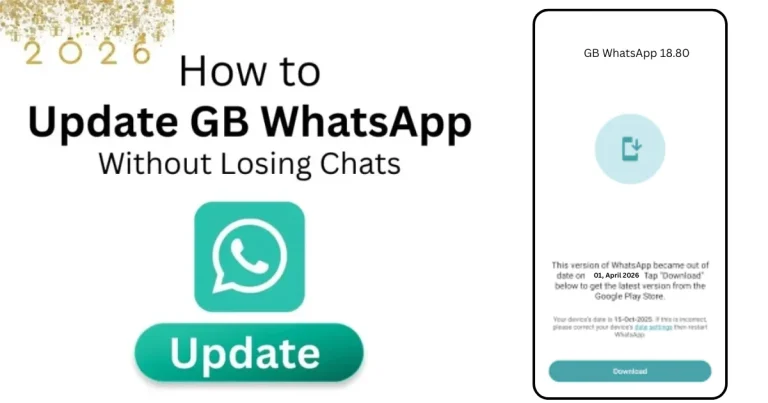
Method 2: Update GB WhatsApp to the Latest Version
If you are using an old version of GB WhatsApp, it may no longer be able to connect to WhatsApp servers. WhatsApp regularly updates its servers, and old versions of modified apps stop working after some time. This is one of the most common causes of login errors in 2026.
- Do not uninstall your current GB WhatsApp yet because you may lose your chats.
- Go to a trusted GB WhatsApp website and download the latest version of the APK file.
- Once downloaded, go to your File Manager and find the APK file in the Downloads folder.
- Tap on it and install it directly over your existing app.
- After installation is complete, open GB WhatsApp and try logging in again.
Always keep GB WhatsApp updated to avoid login errors and other performance issues.
Method 3: Fix the OTP Verification Code Not Arriving
One of the most frustrating login errors is when you enter your phone number, but the OTP verification code never arrives. Without this code, you cannot complete the login process. Here is how to fix this:
- Make sure you entered the correct phone number with the right country code.
- Check that your phone has a network signal and can receive SMS messages.
- Wait for at least 60 seconds before requesting the code again. Sometimes it takes a little time to arrive.
- If the SMS does not arrive, tap on the option that says Call Me Instead. GB WhatsApp will then call your number and give you the code through a voice call.
- Make sure your phone is not blocking messages from unknown numbers. Check your SMS blocking settings and whitelist unknown numbers temporarily.
- If you are using a dual SIM phone, make sure the correct SIM is selected to receive the verification code.
Method 4: Clear GB WhatsApp Cache and Data
Sometimes the app stores old or corrupted data in its cache that blocks the login process. Clearing the cache is a safe action and will not delete your chats.
- Go to your phone Settings and tap on Apps or Installed Apps.
- Find GB WhatsApp in the list and tap on it.
- Tap on Storage.
- Tap on Clear Cache first and wait for a few seconds.
- Now open GB WhatsApp and try to log in again.
If clearing the cache does not work, go back to the same screen and tap Clear Data. Please note that clearing data will log you out and remove local app data, so make sure you have a backup of your chats before doing this step.
Method 5: Fix the Date and Time Settings on Your Phone
This is a very commonly overlooked cause of login errors. If your phone’s date and time are incorrect, GB WhatsApp will not be able to verify your account because the server timestamp will not match your phone.
- Go to your phone’s Settings.
- Tap on General Management or System, depending on your phone model.
- Tap on Date and Time.
- Make sure the option for Automatic Date and Time is turned on. This will sync your phone’s time with the network automatically.
- Also, make sure the correct time zone is selected for your location.
- After fixing the time settings, restart your phone and try logging into GB WhatsApp again.
Method 6: Resolve the Account Ban Error
If you see a message saying your account has been banned or that you cannot use WhatsApp, it means WhatsApp has detected that you are using a modified version of the app. Here is what you can do:
- Download a newer version of GB WhatsApp that includes an anti-ban feature. Most versions released in 2026 already have this built in.
- If your ban is temporary, stop using GB WhatsApp for 24 to 72 hours and try logging in again after that period.
- If the ban is permanent, unfortunately, you will not be able to use that phone number with GB WhatsApp again. You will need to use a different number.
- After installing an anti-ban version, avoid using too many aggressive privacy features all at once, as they can trigger WhatsApp’s detection system.
Method 7: Uninstall and Reinstall GB WhatsApp Cleanly
If none of the above methods have worked, the best option is to do a clean reinstall of GB WhatsApp. Before you do this, make sure you back up your chats.
How to Back Up Your Chats Before Reinstalling
- Open GB WhatsApp and go to Settings.
- Tap on Chats and then tap on Chat Backup.
- Tap the Back Up button and wait for the backup to complete.
- Also, copy the GB WhatsApp folder from your Internal Storage to a safe place like Google Drive or your computer.
How to Reinstall GB WhatsApp
- Go to phone Settings, then Apps, find GB WhatsApp and tap Uninstall.
- Download the latest GB WhatsApp APK from a trusted website.
- Install the APK file and allow unknown sources if prompted.
- Open the app, enter your phone number, verify with the OTP, and restore your backup when prompted.
Method 8: Check for Conflicts With Official WhatsApp
If you have both GB WhatsApp and the official WhatsApp installed on the same phone using the same number, it can cause login conflicts. Here is how to handle this:
- If you want to use GB WhatsApp as your main app, make sure the official WhatsApp is logged out or using a different number.
- Alternatively, use GB WhatsApp on one number and official WhatsApp on a different number to avoid any conflicts.
- Restart your phone after making any changes, and then try logging into GB WhatsApp again.
Quick Summary of All Login Error Solutions
| Login Error | Solution |
|---|---|
| App not connecting during login | Fix internet connection or toggle airplane mode |
| Login fails with old version | Update to the latest GB WhatsApp APK |
| OTP code not arriving | Request call verification or check SMS settings |
| App stuck on loading screen | Clear cache and restart the app |
| Wrong time error during verification | Enable automatic date and time on phone |
| Account banned message | Login fails with the old version |
| Login fails after phone reset | Reinstall and restore from backup |
| Conflict with official WhatsApp | Account-banned message |
Final Thoughts
GB WhatsApp login errors are frustrating, but they are almost always fixable. The most important things to remember are to always keep the app updated, maintain a stable internet connection during login, and make sure your phone’s date and time are set correctly. If you ever face a ban, switching to a newer anti-ban version of GB WhatsApp is usually the quickest solution.
We hope this guide helped you solve your login error and get back into your GB WhatsApp account. If you are still facing an issue after trying all these methods, leave a comment below with your exact error message, and we will help you figure out the best solution for your specific situation.