How to Use Multiple Accounts in GB WhatsApp on One Phone
One of the biggest advantages of GB WhatsApp over the official WhatsApp is the ability to run multiple accounts on a single phone. If you have two phone numbers and you want to use both of them for WhatsApp at the same time without carrying two phones, then GB WhatsApp is the perfect solution for you. Whether you want to keep your personal and professional life separate or manage two different businesses from one device, GB WhatsApp makes it completely possible and very easy to set up.
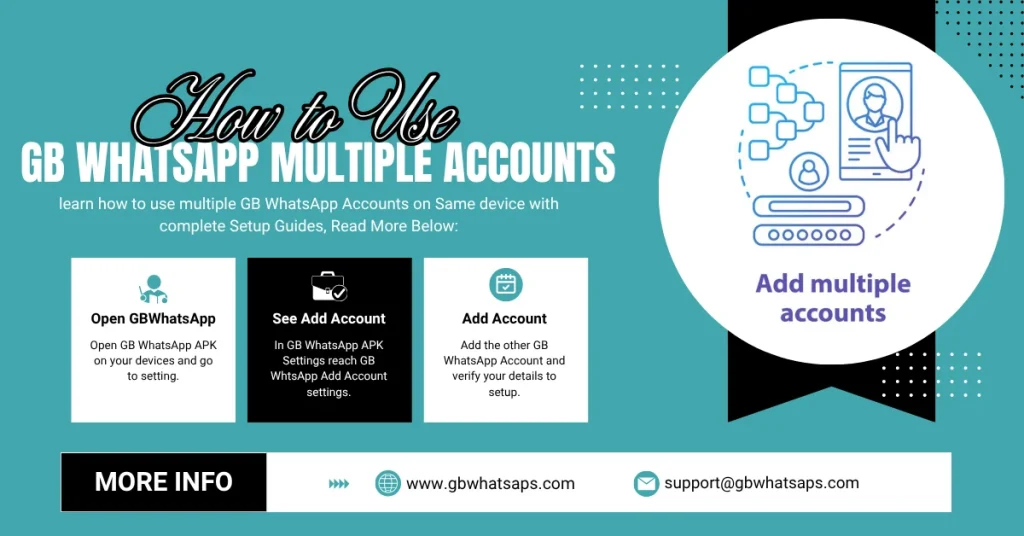
In this guide, we will walk you through every method available to run multiple WhatsApp accounts on one phone using GB WhatsApp. We will explain each method in simple and detailed steps so you can get everything set up quickly without any confusion.
Why People Need Multiple WhatsApp Accounts
Before we get into the methods, it is helpful to understand why so many people need multiple WhatsApp accounts running at the same time on a single device. Here are the most common reasons:
- You have a personal number and a work number, and you want both active on the same phone.
- You run a business and need a separate WhatsApp number for customer communication.
- You want to keep your family conversations completely separate from your professional contacts.
- You travel frequently and use a local SIM alongside your home country SIM.
- You manage social media or communication for someone else and need their account active on your phone.
- You simply do not want to carry two phones just to manage two WhatsApp numbers.
What Makes GB WhatsApp Perfect for Multiple Accounts
The official WhatsApp only allows one account per installation. If you want two accounts on the official app, you have to go through complicated workarounds like using dual-space apps or cloning tools. GB WhatsApp solves this problem in a much more elegant way by being a completely separate app that can run alongside the official WhatsApp or even alongside another modified version called GB WhatsApp 2 or Dual WhatsApp.
Understanding the Two Main Methods for Multiple Accounts
There are two main ways to run multiple WhatsApp accounts on one phone using GB WhatsApp.
| Method | Best For | What You Need |
|---|---|---|
| GB WhatsApp Plus Official WhatsApp | Two accounts on same phone | Dual SIM phone or two numbers |
| GB WhatsApp Plus GB WhatsApp 2 | Two modified accounts | Dual SIM phone or two numbers |
Both methods work very well, and we will explain both in complete detail below:
How to Switch Between Multiple Accounts Quickly
Once you have both accounts set up, switching between them is very simple. Here are some tips to make switching faster and easier:
- Add both app icons to your home screen so you can access them with a single tap.
- Customize the theme color of each app differently so you can instantly tell which account you are in just by the color.
- Turn on custom notifications for each app so you know which account received a message just by the notification sound.
- Add both apps to your quick access dock at the bottom of your home screen for the fastest possible switching.
How to Manage Notifications for Multiple Accounts
Managing notifications from two WhatsApp accounts can get confusing if you do not set them up properly. Here is how to organize your notifications so you always know which account is getting a message:
- Go to your phone Settings and tap on Apps.
- Open the notification settings for GB WhatsApp and customize the notification sound and color for this account.
- Go back to Apps and open notification settings for the Official WhatsApp or GB WhatsApp 2.
- Set a completely different notification sound and color for the second account.
- Now, whenever you receive a message the different sounds will tell you immediately which account the message came from.
How to Set Different Profile Photos for Each Account
Since both accounts are completely separate, you can set different profile photos and names for each one. This makes it easy to maintain a professional image on your work account and a personal image on your private account.
- Open the first account and go to Settings.
- Tap on your profile photo and name at the top.
- Update your photo and name for this account.
- Now open the second account and do the same with a different photo and name.
Each account will have its own completely independent profile that is separate from the others.
Common Problems & Solutions
| Second account not verifying the number | Solution |
|---|---|
| Both apps showing same notifications | Set different notification sounds in phone settings |
| The second account is not verifying the number | Make sure second SIM is active and receiving SMS |
| Second account is not verifying the number | Enable unknown sources and re download the APK |
| Messages are going to wrong account | Check which app you have open before sending |
| Both apps draining battery fast | Enable battery optimization for background apps |
| Cannot find GB WhatsApp 2 download | Search for Dual GB WhatsApp on trusted websites |
| Second account getting banned | Use anti ban version and avoid aggressive settings |
Tips for Managing Multiple WhatsApp Accounts
- Always label your contacts clearly in each account so you know which contacts belong to which number and you do not accidentally message someone from the wrong account.
- Set a different wallpaper for the chat screen of each account so you can instantly tell which account you are using just by looking at the background.
- Keep both apps updated regularly because outdated versions can cause conflicts and errors when running two accounts simultaneously.
- Use different backup schedules for each account to make sure both accounts always have their data safely backed up.
- If you are using both accounts for work and personal use make it a habit to check both accounts at set times during the day rather than constantly switching back and forth.
- If you share your phone with others use the App Lock feature in GB WhatsApp to protect each account separately with its own fingerprint or PIN.
Benefits of Using Multiple Accounts
| Benefit | How It Helps |
|---|---|
| Work and Personal Separation | Keep professional and personal conversations completely separate |
| No Need for Two Phones | Save money and reduce the hassle of carrying multiple devices |
| Full GB WhatsApp Features on Both | Enjoy privacy settings and extra features on all accounts |
| Independent Notifications | Know exactly which account received a message instantly |
| Separate Backups | Each account has its own independent backup and restore |
| Different Profiles | Maintain a different identity and profile for each number |
Final Thoughts
Using multiple WhatsApp accounts on one phone with GB WhatsApp is one of the smartest and most practical things you can do if you manage more than one number. The setup process is straightforward, and once both accounts are running, you will wonder how you ever managed without this feature. Whether you choose to run GB WhatsApp alongside the official WhatsApp or use both GB WhatsApp and GB WhatsApp 2 together, both methods work reliably and give you full access to all the powerful features that GB WhatsApp offers.
Take your time to set everything up properly using the steps in this guide and you will have both your accounts running smoothly on one phone in no time. If you run into any issues during setup or have any questions about managing multiple accounts, feel free to leave a comment below and we will be happy to help you out right away.